CREATING EYEGLASSES
Written by Littl 117@aol.com
*Kathy*
You will need KPT5 for this tutorial and the
Cool Kitchen Preset
I have included the JPG images - COOL KITCHEN -
Place both in the KPT5/Goodies/Environment Maps


  CoolKitchen.zip
1. Open a Transparent Image 400X400
2. Using your Selection Tool  , Choose
Circle from the Tool Options Box..
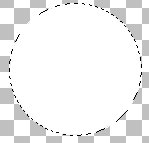
3. Make a circle and using the flood fill
tool
, Choose
Circle from the Tool Options Box..
3. Make a circle and using the flood fill
tool  fill the
lens with white..
I made my circle the size below..You can
make the lens as large or small as you like..
The shape can also be changed,,I used a circle
just to illustrate this tutorial !
fill the
lens with white..
I made my circle the size below..You can
make the lens as large or small as you like..
The shape can also be changed,,I used a circle
just to illustrate this tutorial !
 4. Now go the Edit, Copy and then Paste
as New Selection to
make the other circle
Line up the new selection evenly next to the
original lens leaving some space in between...
4. Now go the Edit, Copy and then Paste
as New Selection to
make the other circle
Line up the new selection evenly next to the
original lens leaving some space in between...
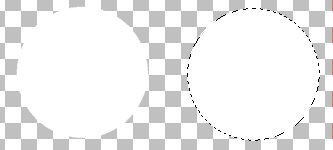 5. Now hold down your shift key and using your
Magic Wand
5. Now hold down your shift key and using your
Magic Wand  select the circle on the left
clicking in the center of it..
Now both circles should be have marching ants
around them.
6. Now go to KPT5 and then select Shapeshifter.
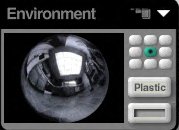
Now go to the Environment Box
select the circle on the left
clicking in the center of it..
Now both circles should be have marching ants
around them.
6. Now go to KPT5 and then select Shapeshifter.
Now go to the Environment Box
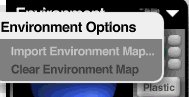 Click on the arrow pointing down and
choose Import Environment Map,,,If u have not
used KPT5 before,,then you will need to locate
your KPT5 Folder and then find
the the Cool Kitchen preset...Mine is
in a folder called
Goodies and then the sub folder EnvMaps..
Click on either of the Cool Kitchen presets
and it will
return you to the previous screen..Now you should
see your box with this in it
***Left click under the word Plastic...This will
bring up a color chart,,You can choose the color
you wish now ..I chose a gray color..***
Click on the arrow pointing down and
choose Import Environment Map,,,If u have not
used KPT5 before,,then you will need to locate
your KPT5 Folder and then find
the the Cool Kitchen preset...Mine is
in a folder called
Goodies and then the sub folder EnvMaps..
Click on either of the Cool Kitchen presets
and it will
return you to the previous screen..Now you should
see your box with this in it
***Left click under the word Plastic...This will
bring up a color chart,,You can choose the color
you wish now ..I chose a gray color..***
 7. Now go the Main Shape Box
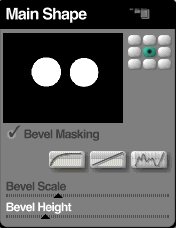 By dragging the slider bar on the Bevel Scale
and Bevel Height, you change the appearance
of the circles,,My settings that I chose are above
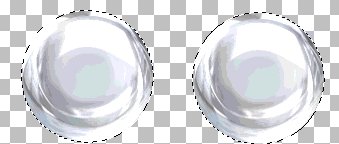
Once you get the circle to look the way you like,,
click on the check mark in the lower right
hand corner and you will bring you back to PSP..
Your circles should look like this now
By dragging the slider bar on the Bevel Scale
and Bevel Height, you change the appearance
of the circles,,My settings that I chose are above
Once you get the circle to look the way you like,,
click on the check mark in the lower right
hand corner and you will bring you back to PSP..
Your circles should look like this now
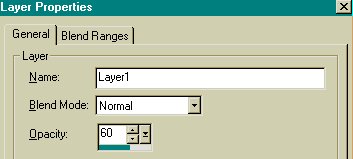
 8. Now go to Layers, then Properties...
We are just changing the Opacity here from
100 to 60...Click OK
and you will see that your circles
become transparent..
8. Now go to Layers, then Properties...
We are just changing the Opacity here from
100 to 60...Click OK
and you will see that your circles
become transparent..
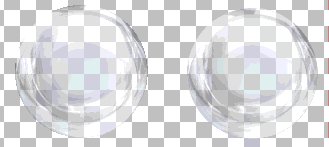
 Picture of circles after changing opacity
Go to Selections,, Select None Now
Picture of circles after changing opacity
Go to Selections,, Select None Now
 9. Go to Layers then New Raster Layer,
then Click OK.
10. Go to the Preset Shapes Tool
9. Go to Layers then New Raster Layer,
then Click OK.
10. Go to the Preset Shapes Tool  and choose Circle and use these settings..
Shape Type - Circle
Line Width - 8
Style - Stroked
Antialias - Checked
Starting at the center of your circle,
create another circle around it so that it fits
around it to make a rim
for the lens as illustrated here..
and choose Circle and use these settings..
Shape Type - Circle
Line Width - 8
Style - Stroked
Antialias - Checked
Starting at the center of your circle,
create another circle around it so that it fits
around it to make a rim
for the lens as illustrated here..
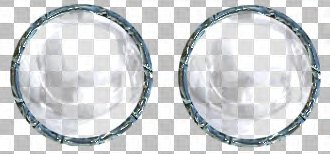
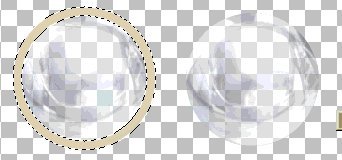 Then I took it to Bladepro
and used the mango glass preset *You
can use whatever preset you like*or use
another filter of your choice or Eye Candy,,etc.
Now go to Edit, Copy and then paste as
New Selection over the rim of the other lens
Now it will look like this after you copied
and pasted it to the other lens..
Go to Selections, Select None..
Go to Layers and Merge Visible
Then I took it to Bladepro
and used the mango glass preset *You
can use whatever preset you like*or use
another filter of your choice or Eye Candy,,etc.
Now go to Edit, Copy and then paste as
New Selection over the rim of the other lens
Now it will look like this after you copied
and pasted it to the other lens..
Go to Selections, Select None..
Go to Layers and Merge Visible
 11. Go to the Draw Tool
  and in the Tool Options Box
Choose these settings
Shape Type - Bezier
Line Width - 8
Antialias - Checked
Draw a straight line in the center of the 2 circles
with the Bezier Line Tool and then move the cursor
just a little itty bit to the left of the center and
drag it upwards pulling from the center to arch
it and then drag it again pulling from the center
again but this time going a little itty bit
to the right
and you will then see that you have curved it...
and in the Tool Options Box
Choose these settings
Shape Type - Bezier
Line Width - 8
Antialias - Checked
Draw a straight line in the center of the 2 circles
with the Bezier Line Tool and then move the cursor
just a little itty bit to the left of the center and
drag it upwards pulling from the center to arch
it and then drag it again pulling from the center
again but this time going a little itty bit
to the right
and you will then see that you have curved it...
 It will look like now look like this
 Now use the Magic Wand and Select it and bring it
Bladepro again *or whatever you may have used on it*
to apply your filter...
11. We're getting there,,, :-)
Now we need to open a New Work Area
400X400 Transparent...We are now going
to make the Wires so the glasses can hang over
your ears,,,LOL
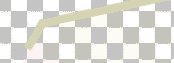
Choose the Draw Tool
Type - Single Line
Style - Line Tool
Width - 8
Antialias - Checked
Draw a line at about a 75 degree angle
like below
Now use the Magic Wand and Select it and bring it
Bladepro again *or whatever you may have used on it*
to apply your filter...
11. We're getting there,,, :-)
Now we need to open a New Work Area
400X400 Transparent...We are now going
to make the Wires so the glasses can hang over
your ears,,,LOL
Choose the Draw Tool
Type - Single Line
Style - Line Tool
Width - 8
Antialias - Checked
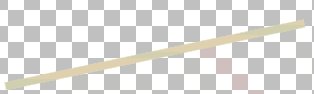
Draw a line at about a 75 degree angle
like below
 Now we need to make the little curved thingy at the
end to hang over the ears,,so using the
Draw Tool again with the same settings as before
draw a short line from the
left bottom edge of the original line at a
slight angle
Now we need to make the little curved thingy at the
end to hang over the ears,,so using the
Draw Tool again with the same settings as before
draw a short line from the
left bottom edge of the original line at a
slight angle
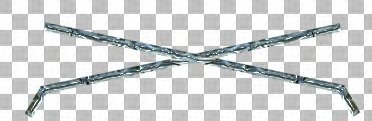
 Select this wire with your Magic Wand
and again bring it to Bladepro or whatever
you used for a filter..Now go to Edit, Copy and
Paste it as a New Selection and then go to Image
and then Mirror....Now make sure your Mover Tool
is Selected
Select this wire with your Magic Wand
and again bring it to Bladepro or whatever
you used for a filter..Now go to Edit, Copy and
Paste it as a New Selection and then go to Image
and then Mirror....Now make sure your Mover Tool
is Selected  and move this new wire over the other one to
criss-cross it...
and move this new wire over the other one to
criss-cross it...
 12. Go back to your glasses on the other Work
Area and Copy and Paste them onto the Wires you
just made !
Voila ! You have a pair of glasses !
:-)
Save as a JPG or a Tube !
I hope you enjoyed this tutorial as much as I did
creating it !
12. Go back to your glasses on the other Work
Area and Copy and Paste them onto the Wires you
just made !
Voila ! You have a pair of glasses !
:-)
Save as a JPG or a Tube !
I hope you enjoyed this tutorial as much as I did
creating it !
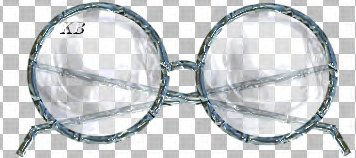 Below are eyeglasses saved as a Tube..
It shows the transparency more when saved
as a tube
Below are eyeglasses saved as a Tube..
It shows the transparency more when saved
as a tube
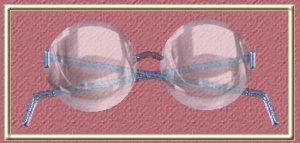 © 2000 *Kath's Tuts & Graphic Designs*
